
Tabs, groups, and windows
Use the sidebar to keep your work organized. Start with a few tabs, then add groups when a project needs more room.
Open a tab or window
Section titled “Open a tab or window”Click + at the top of the sidebar for a new terminal. For another window, choose New window from the ⋯ menu at the bottom.
The new-tab shortcut is Cmd+T on macOS or Ctrl+Shift+T on Linux. See all shortcuts.
Keep a project together
Section titled “Keep a project together”Click the folder button to create a group with its first terminal. Right-click a group to add tabs or another group inside it. Double-click any tab or group to rename it; use the arrow beside a group to fold it away.
Move things around
Section titled “Move things around”Drag a row to reorder it or place it inside another group. Follow the drop marker to see where it will land. Moving a tab keeps its shell running.
Ctrl-click (Cmd-click on macOS) to select several items, or Shift-click for a range. Right-click to move them together, ungroup them, or Move to window. Closed something by mistake? Choose Undo or Reopen closed tabs or groups. Reopened tabs start fresh shells.
Find a terminal
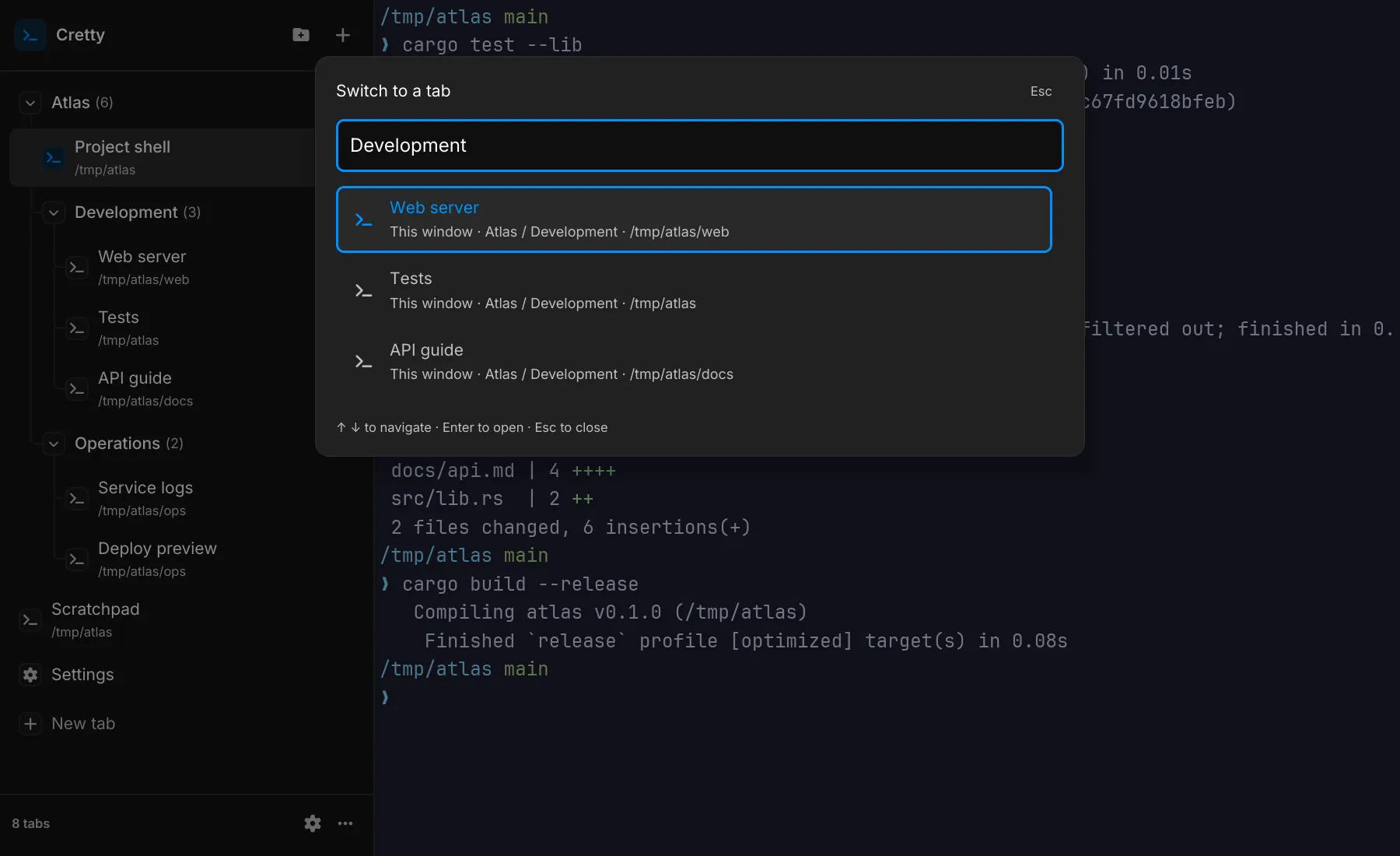
Section titled “Find a terminal”Choose Switch tab across windows from the bottom ⋯ menu. Search by tab name, group, or directory, then press Enter to switch. Ctrl+Tab cycles through tabs in the current window.
Presets and resume
Section titled “Presets and resume”Cretty remembers your windows, groups, tabs, and directories by default. Use Quit and save all windows to return to the same setup next time. Change this in Settings → Shell & sessions.
For a setup you reuse often, right-click a group and choose Save group preset, or use Save window preset from the bottom ⋯ menu. Load it from the same menu.
Restoring a session or loading a preset starts fresh shells. Previous commands and terminal output are not restored.