
Command palette
One search finds actions and open tabs across your windows. Use it to open Settings, create a group, or get back to a project’s shell.
Open the palette
Section titled “Open the palette”Press Cmd+Shift+P on macOS or Ctrl+Shift+K on Linux/Windows. You can also choose Command palette from the bottom ⋯ menu.
Type a few words, use Up/Down to select a result, and press Enter. Press Escape to close the palette and return to where you were.
Find an action
Section titled “Find an action”Try these searches:
new groupcreates a group and its first terminal.settingsopens preferences, where you can search for a setting.reopenbrings back a recently closed tab or group with fresh shells.focus sidebarstarts keyboard navigation.
The reopen action appears when there is something to restore. Results show assigned shortcuts, including your custom bindings.
Jump to a terminal
Section titled “Jump to a terminal”Search by tab name, group path, or working directory. Combine words to narrow
the results: atlas tests can find a Tests tab inside your Atlas project.
Each result shows its window, group, and reported directory. Selecting a tab
in another window brings that window forward.
For tab results only, press Cmd+Shift+L on macOS or Ctrl+Shift+L on Linux/Windows, or choose Switch tab across windows from the bottom ⋯ menu.
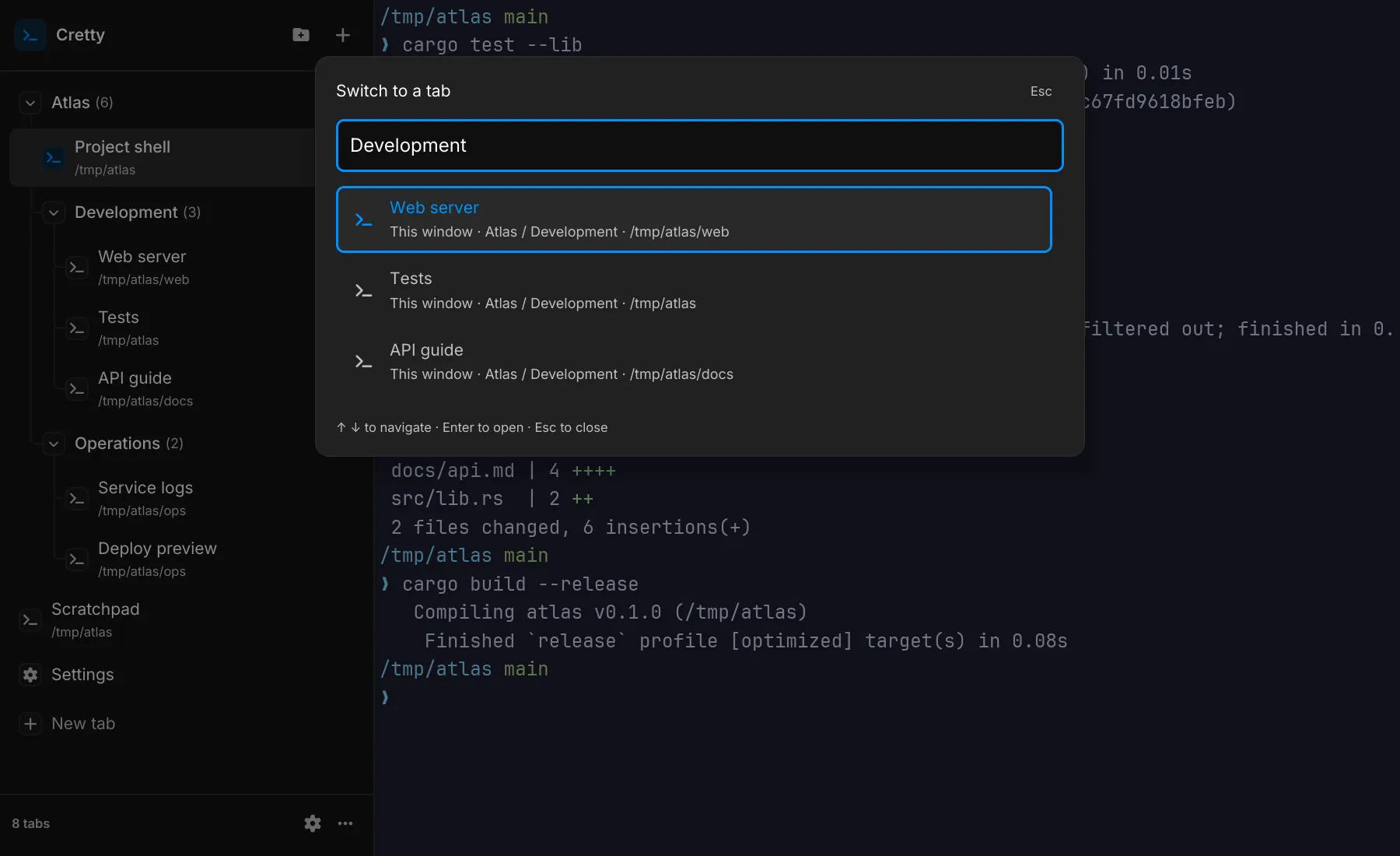
Clear the query to browse all entries again. Descriptive tab names and project groups make results easier to recognize.
Looking for text inside a terminal? Use output search.